

Download Simple Floating Clock – Customizable Mac Desktop Clock Widget
Overview
Simple Floating Clock is a lightweight, highly customizable clock widget designed specifically for macOS users who crave an analog‑style time‑keeper on their desktop. Unlike the native macOS clock, Simple Floating Clock lets you place a fully adjustable analog face anywhere on the screen, change its shape, opacity, and color scheme, and even decide whether it should stay on top of other windows. The app shines when you need to monitor multiple time zones, making it a practical world‑clock solution for remote workers, travelers, and anyone who collaborates across borders.
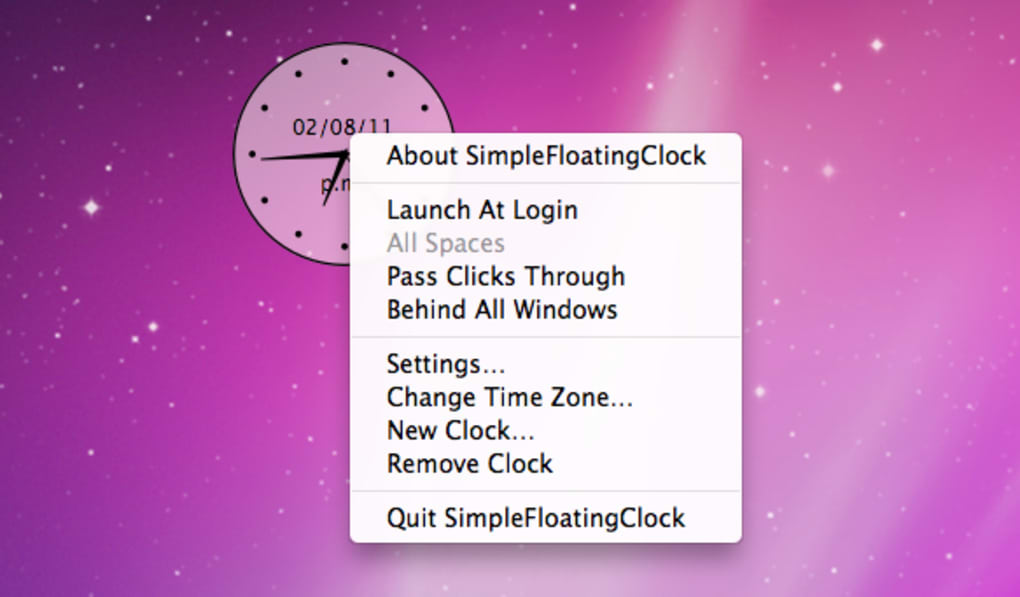
All settings are accessed via a convenient right‑click (or Ctrl‑click) menu, allowing you to tweak the clock’s appearance, the displayed time format, and additional information such as day of the week, day of the month, or the active time zone. While its visual polish may not win design awards, its flexibility and ease of use more than compensate, delivering a reliable, free tool that integrates seamlessly into any Mac workflow. Whether you need a discreet timer for a presentation or a vibrant, color‑coded world‑clock for a global team, Simple Floating Clock offers a secure, update‑ready solution that runs smoothly on modern macOS versions.
Key Features
- Full Customization: Change clock shape (round, square, or minimalist), adjust opacity, and select from a palette of colors for hands, ticks, and background.
- Multiple Clocks & Time Zones: Add as many clocks as you need, each assigned to a different time zone for instant world‑clock functionality.
- On‑Top Option: Choose whether the clock should float above all other windows or behave like a regular desktop widget.
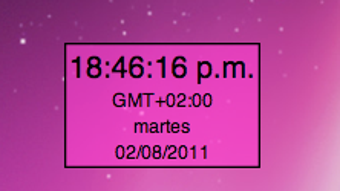
- Day & Date Display: Show day of the week, day of the month, and even the calendar week directly on the clock face.
- Right‑Click Settings Menu: Access all configuration options with a single Ctrl‑click, eliminating the need for complex menus.
- Lightweight & Low CPU Usage: Designed to consume minimal system resources, ensuring your Mac stays fast and responsive.
- Free Updates: Receive regular bug fixes and feature enhancements at no cost, keeping the app secure and compatible with the latest macOS releases.
- Portable Layout: Move the clock anywhere on the screen; its position is saved automatically between sessions.
Installation & Usage Guide
Step‑By‑Step Installation
1. Download the installer: Visit the official Simple Floating Clock website or the Mac App Store and click the “Download” button. The file will be saved as a .dmg package.
2. Mount the DMG: Double‑click the .dmg file. A virtual drive appears on your desktop, showing the Simple Floating Clock app icon and a shortcut to your Applications folder.
3. Copy to Applications: Drag the Simple Floating Clock icon onto the Applications shortcut. macOS will copy the app to /Applications, making it available system‑wide.
4. Launch the app: Open Launchpad or the Applications folder, locate Simple Floating Clock, and double‑click to start. The first launch may trigger a security prompt; click “Open” to allow the app to run.
5. Grant Accessibility Permissions (optional): For the “always on top” feature, macOS may ask you to enable accessibility access. Go to System Settings → Privacy & Security → Accessibility, click the lock to edit, and check the box next to Simple Floating Clock.
Basic Usage
Once the clock appears on your desktop, you can immediately start customizing it. Right‑click (or Ctrl‑click) the clock face to open the Settings menu. Here you’ll find tabs for Appearance, Time Zone, Display Options, and Advanced.
Adjust the size slider to enlarge or shrink the clock, toggle the “Always on Top” switch, and pick your preferred color scheme using the built‑in color picker. To add a second clock, select “Add New Clock” from the Settings menu, choose a time zone, and position the new widget wherever you like. All changes are saved automatically; you can close the Settings panel and the clock will retain its configuration for the next session.
The app also supports keyboard shortcuts for quick adjustments: press ⌘ + ↑/↓ to increase or decrease opacity, and ⌘ + ←/→ to rotate the clock’s orientation (useful for left‑handed users). For power users, the Settings file is stored in ~/Library/Application Support/SimpleFloatingClock/settings.json, allowing manual edits or backup across machines.
Compatibility & System Requirements
Simple Floating Clock is built for macOS and runs on the following versions:
- macOS Ventura (13.x) – fully supported
- macOS Monterey (12.x) – fully supported
- macOS Big Sur (11.x) – supported with minor UI adjustments
- macOS Catalina (10.15) – supported, though some newer graphics features may be limited
The application requires a 64‑bit Intel or Apple Silicon processor, at least 100 MB of free disk space, and a minimum of 256 MB RAM for smooth operation. Because Simple Floating Clock is a native macOS app, it does not run on Windows, Android, or iOS devices. However, users who need cross‑platform clock widgets can explore complementary apps such as “Free Alarm Clock” for iOS or “Free Timer” for Android, which share a similar design philosophy.
The developer provides regular updates to address compatibility with the latest macOS releases, ensuring the app remains secure and functional. Users can enable automatic updates via the Mac App Store or manually check for new versions on the official website. Security is reinforced through code signing, preventing tampering and guaranteeing that the downloaded binary is authentic.
Pros and Cons
Advantages
- Highly customizable appearance – shape, opacity, colors, and size.
- Supports multiple clocks for different time zones, perfect for global teams.
- Lightweight, low CPU and memory usage.
- Free to download with regular, secure updates.
- Intuitive right‑click settings menu eliminates learning curve.
- Always‑on‑top option ensures visibility during presentations.
Drawbacks
- Visual design is functional rather than elegant; may not satisfy users seeking a polished aesthetic.
- No built‑in alarm or timer functionality – must rely on separate apps for those features.
- Limited to macOS; no native Windows or mobile versions.
- Advanced customization (e.g., custom skins) requires manual editing of the JSON settings file.
- Occasional minor glitches when moving the clock across multiple monitors with different resolutions.
Simple Floating Clock delivers exactly what it promises: a flexible, free analog clock that sits wherever you need it on your macOS desktop. Its strength lies in the depth of customization and the ability to display several time zones at once, making it a valuable productivity tool for remote workers. While the UI could benefit from a more modern visual style, the app’s performance, ease of installation, and reliable update schedule make it a solid choice for anyone looking to enhance their Mac workflow with a simple yet powerful clock widget.
Frequently Asked Questions
Can I run Simple Floating Clock on multiple monitors?
Yes. The clock can be dragged to any screen, and its position is saved per‑monitor. If you disconnect a monitor, the clock will automatically relocate to the primary display.
Is there a way to set an alarm within Simple Floating Clock?
No built‑in alarm feature exists. However, you can pair the widget with free alarm apps like “Free Alarm Clock” for macOS to achieve the same result.
Does the app work on Apple Silicon (M1/M2) Macs?
Absolutely. Simple Floating Clock runs natively on both Intel and Apple Silicon Macs, delivering the same performance and low resource usage.
Can I export my clock settings to another Mac?
Yes. All preferences are stored in ~/Library/Application Support/SimpleFloatingClock/settings.json. Copy this file to the same location on another Mac to replicate your configuration.
Is Simple Floating Clock safe to download?
The app is digitally signed by the developer, distributed via the official website and the Mac App Store, and receives regular security updates, making it a safe and trustworthy download.
Conclusion & Call to Action
Simple Floating Clock stands out as a free, secure, and highly configurable desktop clock for macOS. Its ability to display multiple time zones, adjust visual parameters on the fly, and stay unobtrusive on the desktop makes it an essential utility for professionals, students, and anyone who values a quick visual reference to the time. While its design leans toward functional rather than flashy, the trade‑off is a lightweight app that won’t tax your system resources. If you’re looking for a reliable way to keep time at a glance without cluttering your screen, Simple Floating Clock is the perfect solution.
Ready to enhance your Mac desktop? Download Simple Floating Clock now and start customizing your clock experience today.







